

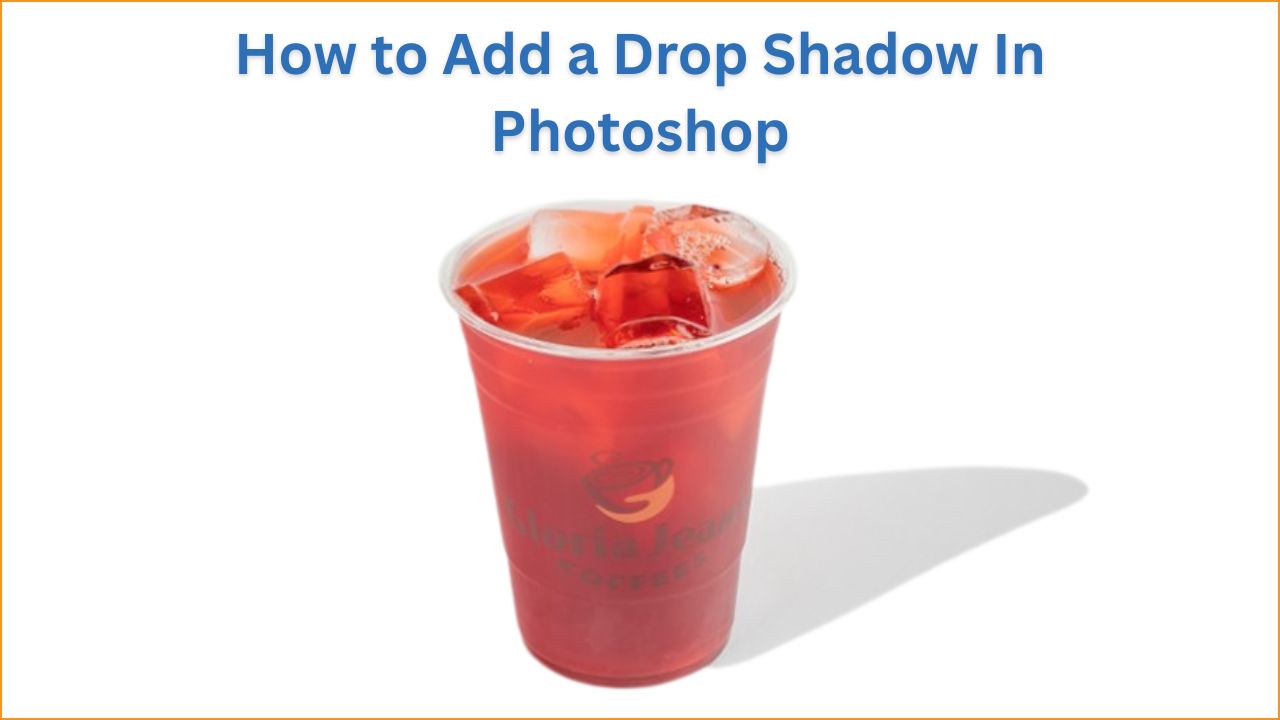
Add a drop shadow in Photoshop, without a doubt, the most popular technique for giving your product a natural-looking appearance in product images. When it comes to selling online, it’s a subtle effect that makes a big difference.
Customers will spend more time on your eCommerce website and purchase products if you devote more time and effort to product photography and post-production processing. There are many advantages of drop shadows that you can see in our previous post.
Before uploading product images to your eCommerce website, let’s take a look at this article on why you should add a drop shadow for product images and how to add a drop shadow in Photoshop.
Why Do You Need a Drop Shadow For Product Images
Drop shadows are important for product images. It makes your image look realistic and natural, which helps you to showcase a high-quality original look image. It grabs shoppers’ attention with a 2D look of your image.
Here, I have clearly explained the need for drop shadows in your product images.

Drop Shadow: Keep Your Product Floating On a Plain Background
It is highly recommended that you fine-tune your images after photography to capture your customers’ attention. Customers usually don’t want to see plain background images because they can feel unrealistic. This is where you add a drop shadow in Photoshop.
It’s a subtle effect that allows your products to float on a plain background, making them appear more realistic than ever. Also, it will create a well-balanced image that will catch your client’s attention.
Drop Shadow Creates More Depth To Your Products
When you use a drop shadow on your product images, it adds more depth and detail to the image, which is something I always want to see when shopping online. It can also assist you in cloning your drop shadow across different areas of an image to create a greater sense of depth and reality.
Every eCommerce business owner, retailer, and photographer uses shadows in their images regularly. You may fall behind if you aren’t.
Makes Your Products Pop
When it comes to selling your products, getting noticed by customers is crucial. Fine-tune your product images and add drop shadows to make them more appealing if you want to catch the customer’s attention.
Keep in mind that duct images drive 70% of your customers to make a purchase, while text information inspires the remaining 30%. As a result, using unappealing or plain background images will not guarantee your success.
Increases The Quality Of Your Product Images
Customers care about the quality of your products, and you care about your company. The quality of products on an eCommerce website is reflected in the images, so you’ll need to make your images more appealing to attract customers.
When compared to your non-virtual brick-and-mortar stores, you can create a stronger online presence with the right images. Quality images not only increase sales but also raise brand awareness.
Makes It Realistic
Drop shadow creation for products is critical for an eCommerce business to appear natural and appealing to customers. With add a drop shadow, they will be able to understand and trust them before making a purchase.
Also, the drop shadow can significantly increase your potential sales. As a result, your store must appear sharp and professional, just like the world’s best-looking supermarkets.
Add a Drop Shadow for Product Images: Step-by-Step Guide
Drop shadow can transform your images into stunning works of art that visitors to your website will enjoy seeing. It can be intimidating to add a shadow on your own, but with a few simple steps, you will be able to do so.
We’ll walk you through each step of adding a drop shadow to your product photo in this tutorial.
Open an Image In Photoshop
The images you take of your products must be of high quality; open an image in Photoshop. In the center, you’ll see the entire image, which you’ll be editing to add a drop shadow to.

Draw a path
Select the pen tool from the left-hand toolbar and create a path around the object’s perimeter. Remove the background from the image once the path drawing is finished.

Duplicate the Layer
Then, on the right side of the Photoshop window, go to the Layers Panel. By right-clicking on the mouse, you can duplicate the Background Layer, or you can use a keyboard shortcut.
To duplicate the layer, press Ctrl + J (Windows) or Command + J (Mac).
To work on the shadow, you’ll need to duplicate this layer as well. Rename the first duplicate layer “Shadow” and the second one “Product” for better understanding.

Enable the Transform Tool by selecting the Shadow Layer.
To use the Transform tool, select the Shadow layer and press Ctrl + T (Windows) or Command + T (Mac).
Then, using your mouse’s right-click menu, select “Distort” to drag the transformed image into a suitable angle for aligning with the incoming light source on your subject.
You can also reposition the transformed image if necessary by selecting the Move tool and pressing V.

Select Gradient Overlay from the drop-down menu
To select the Gradient overlay, double-click on the Shadow layer. This changes the color of your transformed image, resulting in a shadow effect.
You can also adjust the shadow effect with the Opacity slider and Angle fixer.

Convert the layer into a Smart Object and select the Blend Mode
Then, by right-clicking on the Shadow layer and selecting Convert to Smart Object, convert the layer to a smart object. Then, in the Layers panel, find Blend Mode and choose “Multiply.”

Select the Filter
After that, go to the Filter menu in Photoshop’s main menu and select “Blur” from the drop-down menu to choose Gaussian Blur.
For the blur, choose a pixel radius. Because the resolution of all the images isn’t identical, you can use this feature to experiment with the shadow effect.

More Transforming to Perfect the Shadow
It’s now time to continue transforming your shadow. Return to the Transform tool and change the shape of your shadow. Try to figure out where the light comes from and place your shadow accordingly.
You will almost certainly make mistakes during this process, but you will have the opportunity to correct them by making adjustments. To achieve a realistic shadow look, add a drop shadow in Photoshop subtly.

Final Result
So there you have it!!! The product’s drop shadow has been created.
However, you can use a brush to perfect your drop shadow by selecting the brush tool and setting its opacity, flow, size, and hardness to compatible parameters.

Is it Okay to hire a professional drop shadow service?
Hiring a professional drop shadow service comes with tons of benefits, including bulk image editing, a professional touch, high-quality work, and quick turnaround.
On the other hand, making shadows on your own can take a long time and a lot of effort, so you might miss out on other important work for your company. If you’re looking for an image editing company you can rely on, UCP and get the best results you’ve ever seen.
Why You Should Choose Us As Your Drop Shadow Service Provider
We’re a well-known photo editing company that has created drop shadows for some of the world’s most well-known brands, including Nike, Adidas, and Walmart. We have experts on staff who can create a shadow that will enthrall your customers while also enhancing the overall appeal of your product photographs.
We’ve also been providing drop shadow creation services for over a decade, establishing ourselves as a market leader. You’ve come to the right place if you’re looking for top-notch natural shadow and image editing services.
We offer a wide range of picture editing and enhancement services, including digital Image Enhancements ranging from simple color correction to more complex image editing.
Shadow touch-ups are unquestionably required! We can complete your project in the timeframe you require, using top-of-the-line skills and techniques.
Wrapping Up:
Drop shadows are the most important part of photo editing. It helps you to create a realistic and natural-looking image by adding shadow on the bottom, back, or upside-down of your photos.
Here, we have covered why you need a shadow on your image and a step-by-step guide on creating a drop shadow. By exploring this article, you can create a high-quality, realistic, and natural-looking product image that grabs customer attention.
Let’s become professionals at creating drop shadows that make a product look appealing and authentic. Keep practicing as much as possible to skillup yourself.
FAQs:
Where is the Drop Shadow option in Photoshop?
The drop shadow option is in the layer style menu. Just go to the layer style menu and click on the FX icon; you will see the drop shadow options. Click here to activate the drop shadow.
Can I add a drop shadow to text in Photoshop?
Yes, you can add a drop shadow to text in Photoshop. It is like a process of adding a shadow to an image. Follow the drop shadow creation process to add a shadow to text.
Can I edit a drop shadow after applying it?
Yes, you can edit the drop shadow after applying it. Double-click on the shadow layer to reopen the drop shadow effect, then edit as you need.
Why is my drop shadow not visible in Photoshop?
Your drop shadow should not be visible due to too low opacity, distance set to 0, or the shadow layer being below the background. Adjust those options to a visible drop shadow in Photoshop.
How do I change the color of a drop shadow?
You can change the color of a drop shadow by clicking the color box on the menu options and then selecting any color as you require.